Paying a bill

You can use the Pay Bills page to select a payee and pay a bill.

To pay a bill

  1. In the navigation menu, click or tap Transactions > Bill Pay.
  2. On the Pay Bills tab of the Bill Pay page, browse or search for the payee that you want to pay and click or tap the payee name.
  3. On the payment page, do the following:
    1. In Amount, specify the amount that you want to pay. Some payees include additional payment options. Click or tap one of the following options to select it for payment:
      • Total balance
      • Minimum amount due
      • Other amount
    2. In the Pay from account list, select the account from which you want to make the payment.
    3. If the Delivery Method list is visible, click or tap the delivery method.
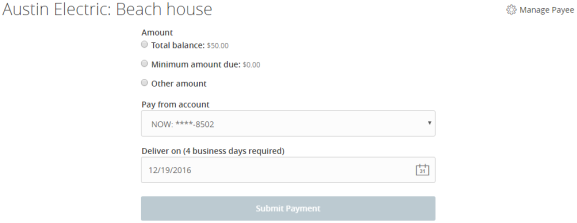
    4. In the Deliver on calendar, click or tap the date to pay the bill.

  4. Click or tap Submit Payment to schedule the payment.
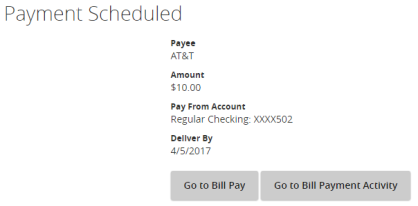
  5. On the Payment Scheduled page, click or tap Go to Bill Pay or Go to Bill Payment Activity.

Note:  The Bill Pay workflow may differ depending on the processing model your FI offers. An alternate configuration will change which columns are displayed and how you select the date.