Trends
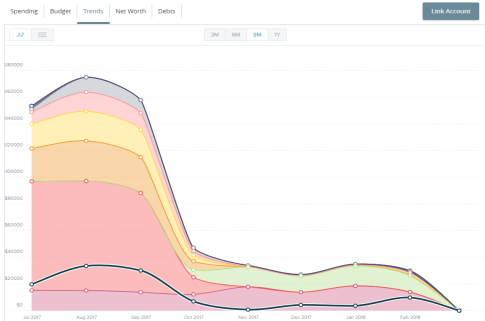
The Trends tool builds even further on your budgeting categories to help track spending over time as compared to income. It shows spending history by category, in relation to income. This way, you can quickly determine if you are spending more than you are making.
Note: Your financial institution (FI) has a choice of two providers for Personal Financial Management: MX or Geezeo. This feature is only available to users with MX Personal Financial Management. To learn more, see Determining your Personal Financial Management provider.
Using the Trends tool
- You can view transaction trends graphically or in list view. Choose a date range at the top to change the transaction trends period.
- Hover your mouse over a colored area to show the actual spending in each category for the months displayed.
- Select a category area in the graph to drill down into the selected category and show any relevant subcategories.
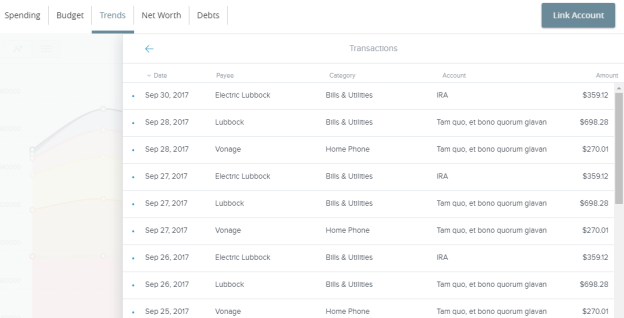
- Select any of the circle data points to display a list of transactions for the selected category.
- Select any transaction to see transaction details.
Note: Tags only appear within Financial Tools.They do not appear on the Account Details page and are not used for anything within digital banking at this time.
Note: Your experience may be different from the user interface described, based on your financial institution's custom configuration.